#Original Source
console - PowerShell steps to fix slow startup - Stack Overflow
Generally, when you launch PowerShell ISE, it needs to load all the modules. The best way to shorten the load times is by removing old modules or preventing them from loading automatically.
This is a fairly simple solution. For this to work, make sure your PowerShell ISE shortcut doesn’t have “-noprofile” added as a parameter to the targetname.
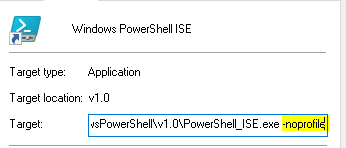
If it has that parameter, remove it and make sure there is nothing else there.
Next, launch PowerShell ISE.
Run the following command
$profile | Select-Object -Property *
The output will show you all the profiles that are loaded based on the session you have open. Go to each parent directory to make sure those *.ps1 files exist. If they don’t exist, create them.
In each of the profile ps1 fles from above, we will add some code to prevent all modules from loading automatically. The modules are still available, but we will import them only when we need them as opposed to at each session. This should greatly reduce load times.
Type in these 3 lines into the ps1 files and save them.
$PSModuleAutoLoadingPreference = 'None'

Import-Module Microsoft.PowerShell.Utility
Import-Module Microsoft.PowerShell.Management
The 2 modules we are importing are basic Powershell Modules that shouldn’t have a lot of impact on the loading time. If you want to add any additional modules that you WANT to load automatically you can add them below the other imports and those will be loaded as well.
After adding those lines into all the profile ps1 files, go ahead and try to launch PowerShell it should now launch almost instantly.
For additional ideas you can check out the link I posted at the top of this post.