Typically loading the entire PowerCLI suite takes a really long time. Not only to launch Powershell, but also running the script. After a lot of trial and error, I decided to see if I can get it to load faster.
From several sources I have noticed most people say all you really need is the “VMware.VimAutomation.Core” module to run most commands, however if I try to load the module I run across the issue that it requires other modules to be loaded as well.
The next hurdle is figuring out which required modules are needed to load for my module to work properly.
I went ahead and wrote a quick script that made this much easier for me.
before I go into all the details, keep in mind, that in my situation these are the paths that are associated with my $PSModulePath variable
C:\Users\James\Documents\WindowsPowerShell\Modules
C:\Program Files\WindowsPowerShell\Modules
C:\WINDOWS\system32\WindowsPowerShell\v1.0\Modules
I try to keep the bottom 2 paths bloatfree (stock), and only load custom modules within the user context so they will only be in my user documents folder (the first path listed above). This makes things a little easier to troubleshoot as well.
A few things to consider…
I have my vmware - PowerCLI module and all of the subfolders in a separate folder so they don’t get loaded automatically when I start powershell ISE.
“C:\Users\James\Documents\WindowsPowerShell\ManualLoadModules”
Since I am interested in just loading the “VMware.VimAutomation.Core” module, I need to make sure I include all the required modules. The script below will output all the required modules I will need.
CLS

#Clear out Variables
Clear-Variable MainModule, MainPSD1File, Content, line, RequiredModule -Force -Confirm:$False -ErrorAction SilentlyContinue

#Get the main module we want to load
$MainModule = $env:HOMEDRIVE + $env:HOMEPATH + "\Documents\WindowsPowerShell\ManualLoadModules\VMware.PowerCLI"

do
{
    $MainPSD1File = [System.IO.Directory]::EnumerateFiles($MainModule, "*.psd1", [System.IO.SearchOption]::AllDirectories) | select-object -First 1

    $Content = [System.IO.File]::ReadAllLines($MainPSD1File)

    #Open the file and find the required Module
    $line = $Content | Select-Object | Where-Object {$_ -like "*ModuleName*"}

    if(($line | measure).count -eq 1)
    {
        $RequiredModule = $line.split('"')[3]
        $RequiredModule
    }
    else
    {
        foreach($i in $line)
        {
            $i.split('"')[3]
        }
    }

    #Set our new path
    $MainModule = $env:HOMEDRIVE + $env:HOMEPATH + "\Documents\WindowsPowerShell\ManualLoadModules\$($RequiredModule)"

} until($NULL -eq $line)
The Output will look like this:
VMware.VimAutomation.Cis.Core
VMware.Vim
VMware.VimAutomation.Common
VMware.VimAutomation.Sdk
So now I will copy those folders and pase them into
C:\Users\James\Documents\WindowsPowerShell\Modules
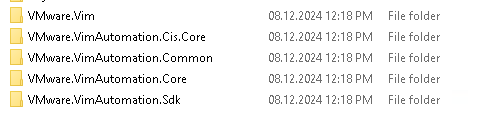
After performing these steps, PowerShell loads fast and I am able to run all my necessary commands.
Hope this helps!
Additional source that could help: